Image understanding
Note: Currently, recognition only works for the Gemini AI family.
The OnlySq API provides the ability to recognize and process images along with a text query - it's easy to use:
python
from openai import OpenAI
import base64

def encode_image(image_path):
	with open(image_path, "rb") as image_file:
	    return base64.b64encode(image_file.read()).decode('utf-8')

client = OpenAI(
    base_url="https://api.onlysq.ru/ai/openai",
    api_key="openai",
)

base = encode_image('pic.jpg')

completion = client.chat.completions.create(
    model="gemini-2.5-flash",
    messages=[
        {
            "role": "user",
            "content": [
                {
                    "type": "text",
                    "text": "What on this image?",
                },
                {
                    "type": "image_url",
                    "image_url": {
                        "url":  f"data:image/jpeg;base64,{base}"
                    },
                },
            ],
        },
    ],
)

print(completion.choices[0].message.content)
It also works well for API 2.0:
python
import requests
import base64

def encode_image(image_path):
	with open(image_path, "rb") as image_file:
	    return base64.b64encode(image_file.read()).decode('utf-8')

base = encode_image('pic.jpg')

send = {
    "model": "gemini-2.5-flash",
    "request": {
        "messages": [
            {
                "role": "user",
                "content": [
	                {
	                    "type": "text",
	                    "text": "What on this image?",
	                },
	                {
	                    "type": "image_url",
	                    "image_url": {
	                        "url":  f"data:image/jpeg;base64,{base}"
	                    },
	                },
	            ],
            }
        ]
    }
}

request = requests.post('http://api.onlysq.ru/ai/v2', json=send)
response = request.json()
print(response["choices"][0]["message"]["content"])
How it works
First, we convert image to base64:
python
def encode_image(image_path):
  with open(image_path, "rb") as image_file:
    return base64.b64encode(image_file.read()).decode('utf-8')

base = encode_image('pic.jpg')Then, we insert the formatted string into the query:
python
{
    "type": "image_url", # Say that we are sending the image
    "image_url": {
        "url":  f"data:image/jpeg;base64,{base}"
    },
},Finally, we send formatted request to API.
The API processes the base64 string and sends an image to AI model, after - response is returned to the user.
Response example
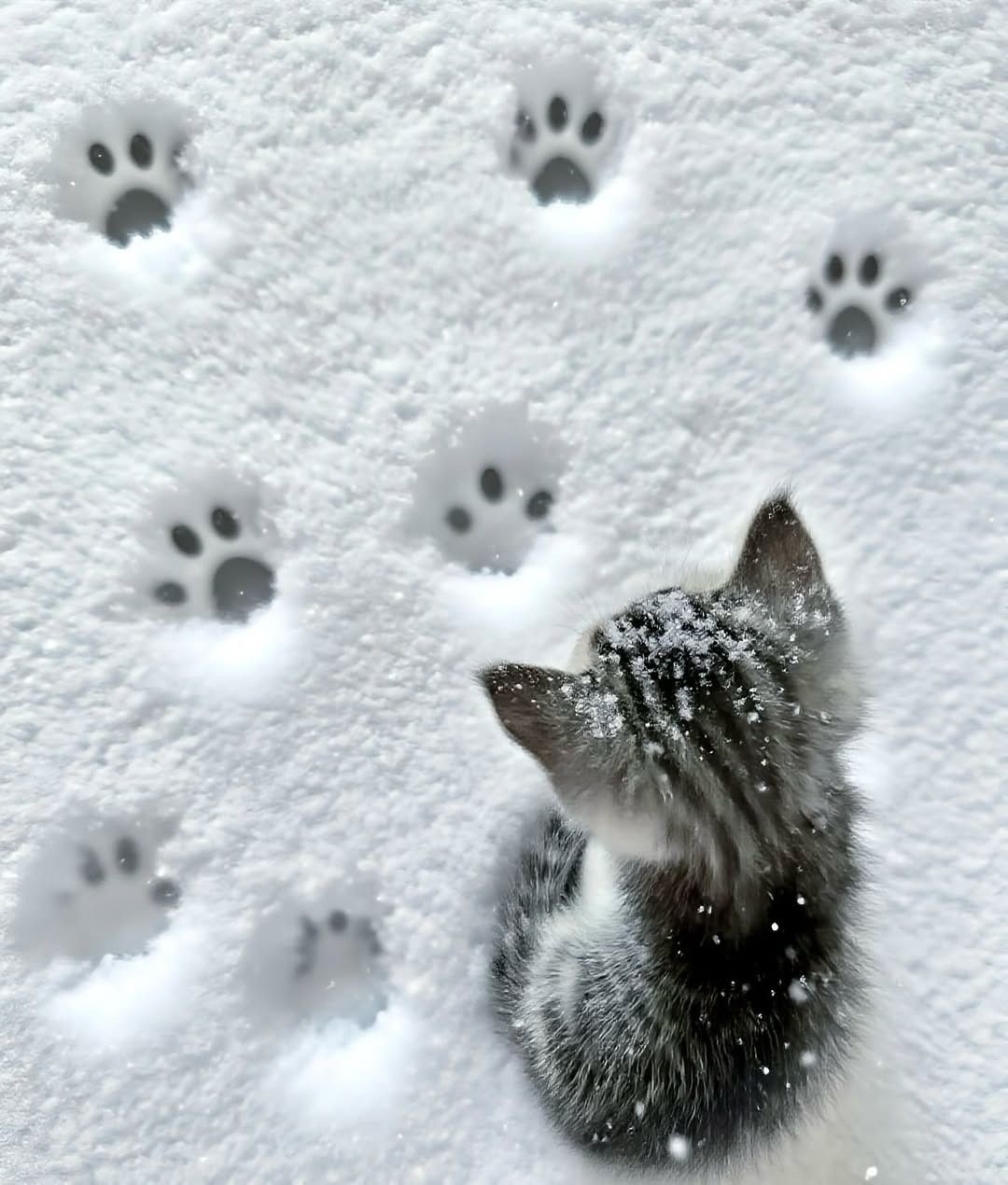
This image features a kitten in the snow, looking at a series of paw prints.
Here's a breakdown of what's visible:
- Snow: The ground is covered in white, fluffy snow.
- Kitten: A small, striped (tabby) kitten with gray and white fur is visible from a top-down, slightly backward angle. It has some snowflakes on its fur, particularly on its head and back.
- Paw Prints: Several distinct paw prints are embedded in the snow, leading away from the kitten. They appear to be cat paw prints.
pic.jpg: